ZCode Download & Install: Windows, macOS & Linux Guide
ZCode is Z.ai’s desktop Agentic Development Environment for AI-assisted software development. It is available for macOS, Windows and Linux, with separate installers for different processor architectures.
The official ZCode installation page currently lists version 3.14.4 as the latest download. Because ZCode is being updated frequently, check the official download page if you are reading this later.
Quick Answer
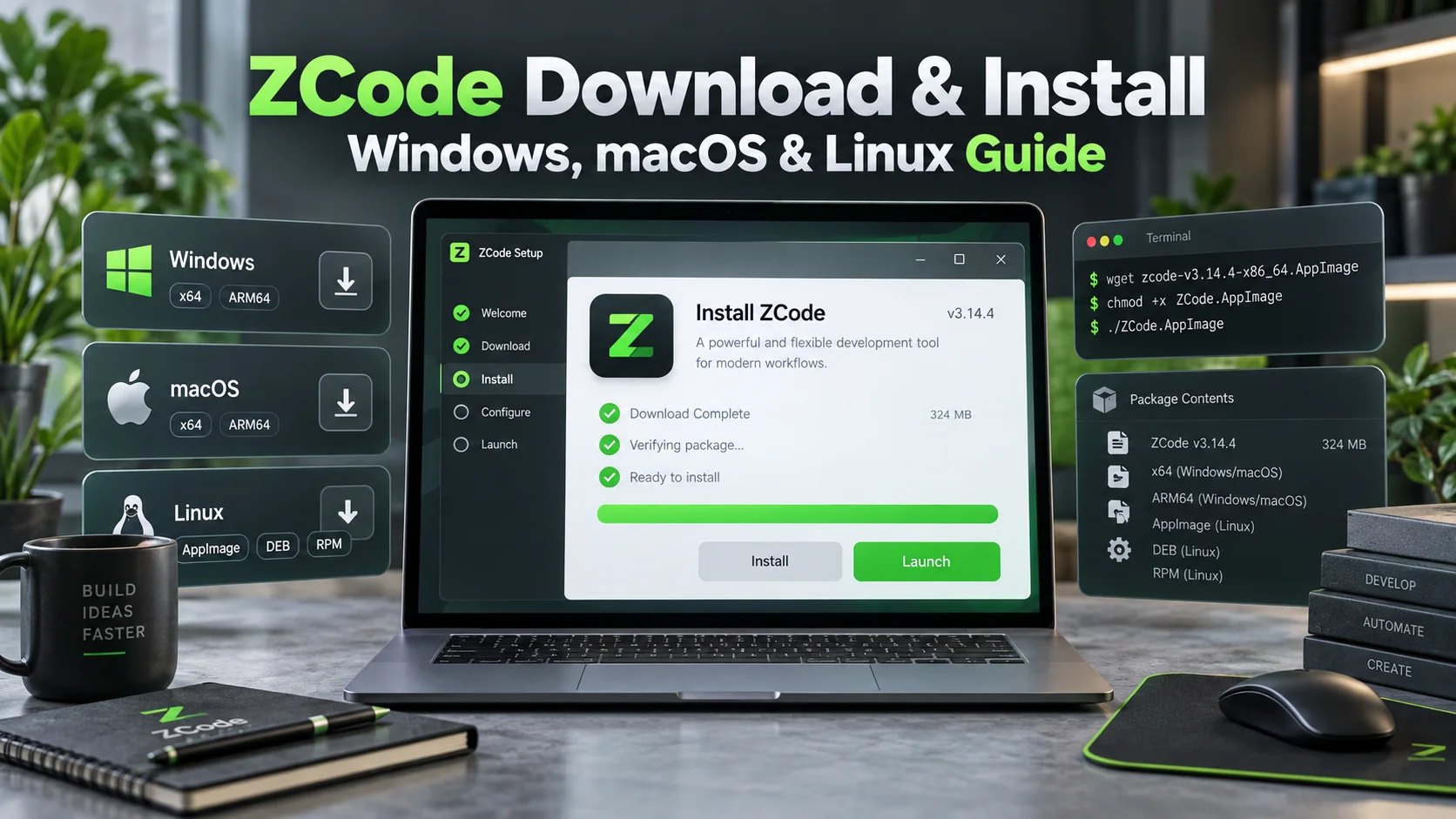
You can download ZCode for macOS Apple Silicon, macOS Intel, Windows x64, Windows ARM64, Linux x64 and Linux ARM64. macOS uses a DMG installer, Windows uses an installer, and Linux offers AppImage, DEB and RPM packages. Linux is currently labeled Beta on ZCode’s main download page.
Where to Download ZCode
The safest source is the official ZCode download and installation page. This matters because unrelated products and third-party pages also use similar “ZCode” names in search results.
Use the official Z.ai/ZCode domain rather than downloading an installer from an unknown mirror.
ZCode Supported Platforms
| Platform | Architecture | Installer type |
|---|---|---|
| macOS | Apple Silicon | DMG |
| macOS | Intel | DMG |
| Windows | x64 | Windows installer |
| Windows | ARM64 | Windows installer |
| Linux | x64 | AppImage, DEB, RPM |
| Linux | ARM64 | AppImage, DEB, RPM |
The official main ZCode download page currently marks Linux as Beta. The installation documentation supports both x64 and ARM64 Linux packages.
Which ZCode Version Is Current?
As of October 2, 2026, the official installation page lists ZCode v3.14.4 as the latest download.
You may see older version numbers in cached search results or on sections of the ZCode website. When pages disagree, use the current installation page and changelog rather than an old search snippet.
How to Install ZCode on macOS
First choose the correct build for your Mac:
- Apple Silicon: for Macs using Apple M-series processors
- Intel: for older Intel-based Macs
Then follow the official installation process:
- Download the appropriate ZCode DMG file.
- Open the downloaded disk image.
- Drag
ZCode.appinto the Applications folder. - Open Launchpad and start ZCode.
Fix “ZCode is damaged and can’t be opened” on macOS
ZCode’s official troubleshooting section documents the following command for the macOS quarantine error:
xattr -dr com.apple.quarantine /Applications/ZCode.appAfter running it, try opening ZCode again.
How to Install ZCode on Windows
ZCode currently provides both Windows x64 and Windows ARM64 installers.
- Download the installer matching your Windows architecture.
- Double-click the downloaded installer.
- Follow the setup wizard.
- Launch ZCode from the Start menu or desktop shortcut.
Windows x64 vs ARM64: Which One Do You Need?
Most traditional Intel and AMD Windows PCs use the x64 installer. Windows devices built around ARM processors use the ARM64 version.
If you are unsure, open Settings → System → About in Windows and check the system type before downloading.
Windows Shell Settings
ZCode lets Windows users choose the shell its Agent uses for commands under Settings → General → Terminal. Current choices include Auto, CMD and Git Bash when Git Bash is installed.
Auto is the default. According to current ZCode documentation, it prefers Git Bash when available and otherwise falls back to cmd.exe. Shell changes apply to new sessions.
Why ZCode May Still Run After You Close the Window
On Windows, closing the main ZCode window may send the application to the system tray instead of quitting it. This behavior helps scheduled and idle-time tasks continue running in the background.
If you want the close button to quit ZCode, turn off Hide to tray when closing window under Settings → General → Notifications.
How to Install ZCode on Linux
ZCode currently offers three Linux package formats:
- AppImage
- DEB
- RPM
Both x64 and ARM64 architectures are listed.
Install the AppImage
After downloading the AppImage, make it executable:
chmod +x ZCode-*.AppImageThen launch it by double-clicking the file or running it from a terminal.
Install DEB or RPM
Download the package that matches your Linux distribution and architecture, then install it using your distribution’s package manager.
If a Linux AppImage does not start, ZCode recommends checking that it is executable. Some distributions may also require the FUSE dependency.
Does ZCode Support WSL?
ZCode’s Windows desktop client can connect to WSL through its Remote Development feature. That is different from installing the Linux desktop package inside WSL.
For remote development, ZCode also supports SSH hosts and local Docker containers. Our What Is ZCode? guide explains the wider development environment and feature set.
What Happens on the First Launch?
The first launch opens ZCode’s onboarding flow. You can start directly or use its Data Migration Wizard.
Current migration support is limited. ZCode says the wizard can import conversation history from Claude Code and the legacy ZCode Agent. Other tools are not currently supported by the migration wizard.
After onboarding:
- Select a project directory as your workspace.
- Connect a model or Coding Plan if one is not already configured.
- Enter a simple instruction, such as asking ZCode Agent to list the files in the current directory.
- Confirm that the Agent can respond and access the expected workspace.
How to Connect Z.ai After Installing ZCode
For global users, ZCode currently recommends connecting a Z.ai account. If that account has an active GLM Coding Plan, ZCode can use the plan and quota directly.
The official ZCode model connection guide lists three main paths: connect a Z.ai account, connect BigModel for China-focused usage, or use an API key/custom provider.
For a normal global Coding Plan setup, connecting your Z.ai account is the simpler option because ZCode can route requests automatically without manual base-URL configuration.
Using a GLM Coding Plan API Key in ZCode
If you choose API Key mode for a GLM Coding Plan, use Z.ai’s coding-only OpenAI-compatible endpoint:
https://api.z.ai/api/coding/paas/v4Do not replace it with the normal pay-as-you-go API endpoint when you intend to use Coding Plan quota.
The difference between Coding Plan subscription credits and public API billing is explained in our Z.ai Coding Plan guide.
Does ZCode Have a Free Trial?
ZCode currently advertises a five-day new-user trial with daily GLM model allowances. The exact trial terms can change, so check the current ZCode onboarding screen before relying on the allowance.
After the trial, users can connect a GLM Coding Plan, use eligible API access or configure compatible third-party model providers.
ZCode System Requirements
ZCode’s current installation page clearly documents supported operating systems, CPU architectures and installer formats. However, it does not currently publish a detailed minimum hardware table for RAM, storage, CPU generation or minimum macOS/Windows release on that page.
For that reason, avoid treating unofficial hardware requirements from third-party download sites as official ZCode requirements.
How to Configure a Network Proxy in ZCode
If your network requires a proxy, open Settings → General. ZCode provides settings for an HTTP proxy, bypass list and custom certificate.
A useful detail from the official documentation: leaving the HTTP Proxy field empty does not mean “use the system proxy.” ZCode connects directly when the field is blank.
If your terminal can access the network but ZCode cannot, this difference is worth checking.
Common ZCode Installation Problems
| Problem | What to check |
|---|---|
| macOS says app is damaged | Remove the quarantine attribute using ZCode’s documented xattr command |
| Windows installer is blocked | Check security software/firewall and verify you downloaded from the official ZCode site |
| Linux AppImage will not run | Make it executable and check whether FUSE is required |
| Model will not connect | Check account connection, API key and the correct endpoint |
| Network works in terminal but not ZCode | Configure ZCode’s own proxy settings rather than assuming system environment variables are used |
ZCode Download vs Claude Code
ZCode and Claude Code are separate products. ZCode is Z.ai’s own desktop development environment. Claude Code is Anthropic’s coding agent, although Z.ai officially supports connecting GLM Coding Plan models to Claude Code.
If you prefer the Claude Code workflow, Z.ai also officially supports routing Coding Plan models through Claude Code. If you prefer the first-party Z.ai development environment, download ZCode instead.
What to Explore After Installing ZCode
Once ZCode is working, its features go well beyond basic AI chat. Current capabilities include Goal Mode, browser automation, memory, remote development, subagents, plugins, skills, MCP, scheduled automations and other agentic development features.
ZCode also has a newer multi-agent workflow system. Our ZCode Dynamic Workflows guide explains that feature separately.
Frequently Asked Questions
Where can I download ZCode?
Download ZCode from the official zcode.z.ai website or its official installation documentation. Avoid unrelated third-party products that use similar ZCode names.
Does ZCode work on Windows?
Yes. ZCode currently provides Windows x64 and Windows ARM64 installers.
Does ZCode work on macOS?
Yes. Separate DMG downloads are available for Apple Silicon and Intel Macs.
Does ZCode work on Linux?
Yes. ZCode provides x64 and ARM64 Linux downloads in AppImage, DEB and RPM formats. Linux is currently labeled Beta on the main ZCode download page.
What is the latest ZCode version?
The official installation page listed ZCode v3.14.4 as the latest version when this guide was checked on October 2, 2026. Check the official page for newer releases.
Do I need the GLM Coding Plan to install ZCode?
No. Installation and model access are separate steps. New users can receive a trial, and ZCode can connect to a Z.ai Coding Plan, API key or compatible third-party model provider.
Final Thoughts
ZCode installation is straightforward once you choose the correct platform and architecture. macOS users need the appropriate Apple Silicon or Intel DMG, Windows users can choose x64 or ARM64, and Linux users have AppImage, DEB and RPM options.
The more important setup step comes after installation: connect the correct model source or Coding Plan and verify the Agent can access your chosen workspace. From there, ZCode becomes the first-party Z.ai environment for GLM-powered coding, automation and multi-agent workflows.